Building pages from scratch takes time you don’t have. Whether you’re running A/B tests, creating templates, or migrating content, duplicating existing pages saves hours of work while preserving your carefully crafted designs and SEO settings.

WordPress doesn’t include a built-in page duplication feature, but you have several effective methods to clone pages. This guide covers plugins, manual techniques, and code solutions that preserve metadata, custom fields, and SEO configurations.
Table of Contents
- Duplicate a WordPress Page Using Plugins
- Duplicate a WordPress Page Without Plugins
- Best Practices When Duplicating Pages
- Why Duplicate a Page in WordPress?
- Speed Up Your WordPress Workflow with Quality Templates
Duplicate a WordPress Page Using Plugins
Plugins offer the most reliable way to duplicate WordPress pages while preserving all elements. Here are four top-rated options that make page cloning a comprehensive and straightforward process.
1. Yoast Duplicate Post
The Yoast Duplicate Post plugin stands out as the most popular choice, with over 5 million active installations. This free tool provides multiple duplication options and works seamlessly with most WordPress themes.
How to Duplicate Pages:
1. Install and activate the plugin from Plugins > Add New by searching “Yoast Duplicate Post“.

2. Navigate to Pages > All Pages in your WordPress dashboard.
3. Hover over any page you want to duplicate.
4. Click “Clone” to create an exact copy, or “New Draft” to duplicate and edit immediately.
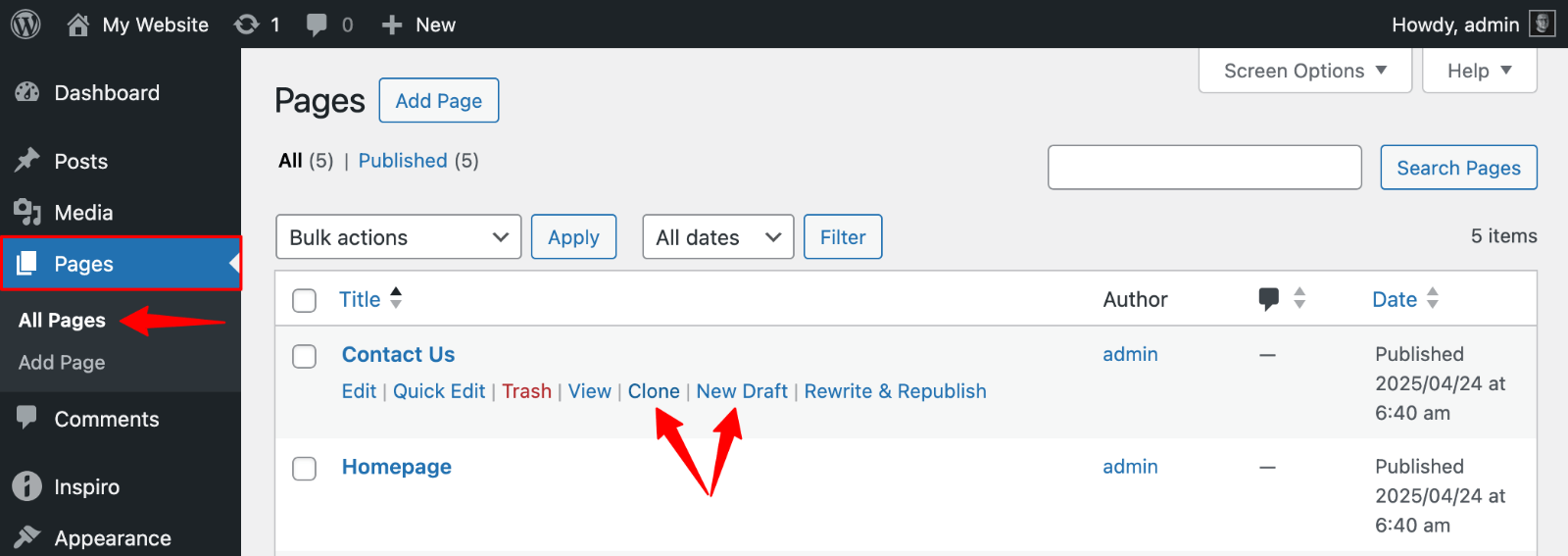
For bulk duplication, select multiple pages and choose “Clone” from the bulk actions dropdown.
Key Features:
- Clone creates an exact copy of your page, including all content, metadata, and settings. The duplicated page appears in your pages list with the same title, allowing you to edit it separately.
- New Draft duplicates the page and opens it in the editor immediately. This option works perfectly when you want to make immediate changes to the cloned content.
- Rewrite & Republish lets you create a revised version while keeping the original live. You can work on improvements without affecting your published page.
Configure the plugin through Settings > Duplicate Post to customize which elements get copied. You can choose to duplicate categories, tags, custom fields, featured images, and even comments. The settings also let you add prefixes or suffixes to duplicated page titles for easy identification.
Duplicate Page Plugin
The Duplicate Page plugin prioritizes simplicity while providing powerful customization options. With over 3 million installations, it efficiently handles pages, posts, and custom post types.
Page Duplication Process:
1. Install and activate the plugin from Plugins > Add New by searching “Duplicate Page“.
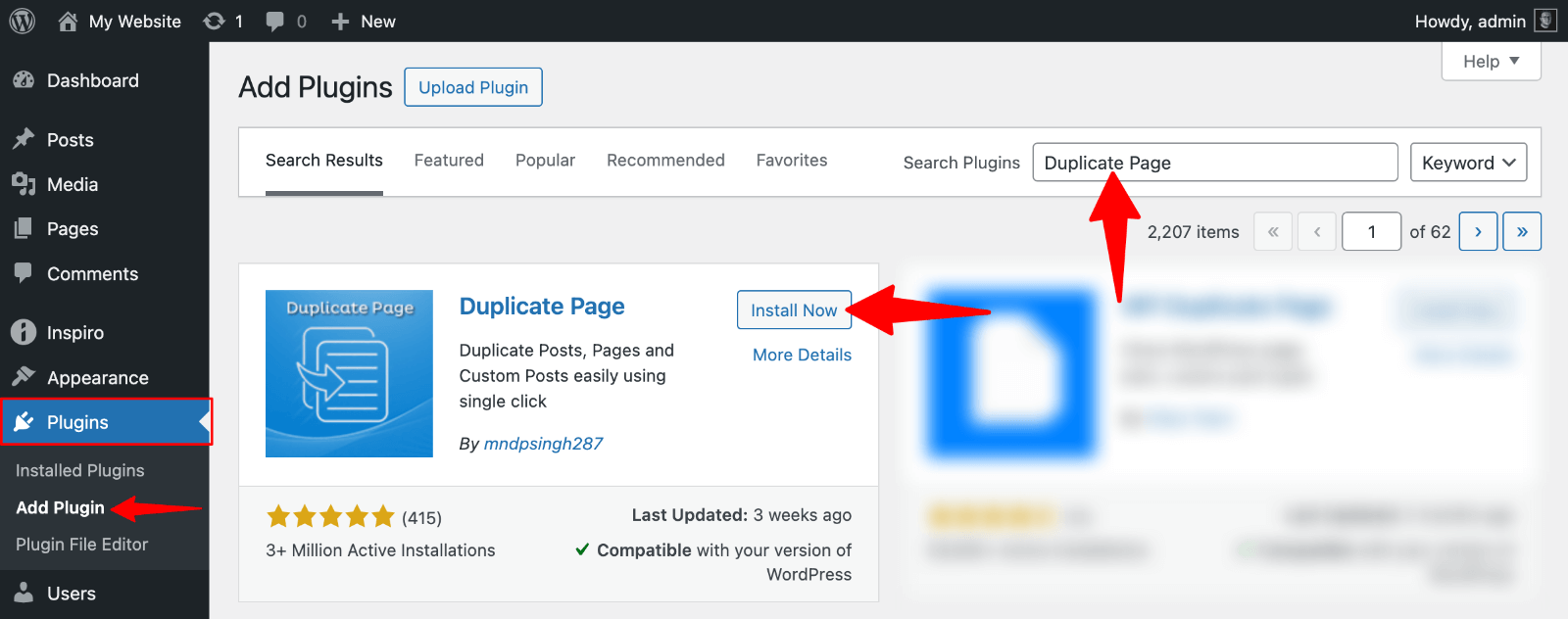
2. Optionally configure settings under Settings > Duplicate Page.
3. Go to Pages > All Pages.
4. Hover over the page you want to duplicate.
5. Click the “Duplicate This” link that appears.
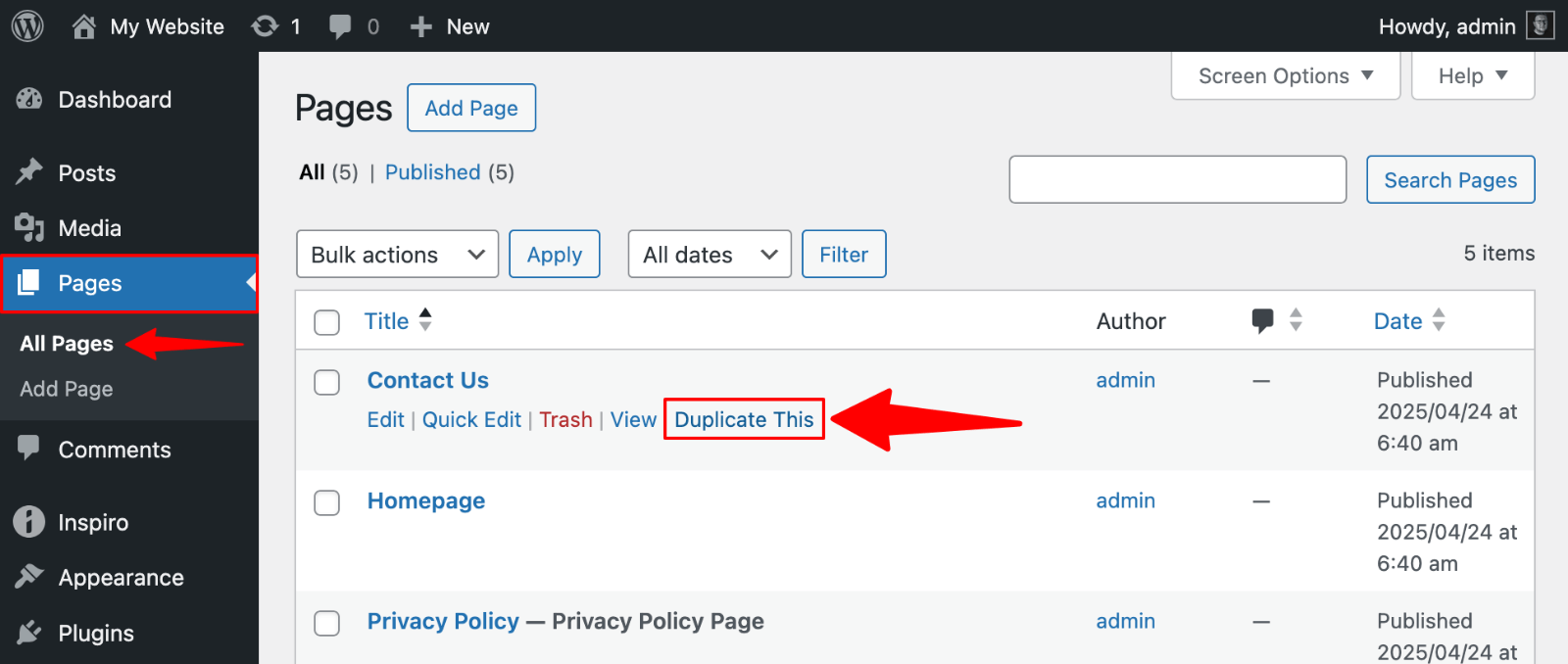
The duplicated page will be created with your preset configurations.
Customization Options:
- Set default status for duplicated pages (Draft, Published, Private, Pending)
- Add prefixes or suffixes to distinguish copies
- Choose which post types can be duplicated
- Control user permissions for duplication features
The plugin works exceptionally well with custom post types, making it valuable for sites using advanced content structures or page builders.
Post Duplicator Plugin
Post Duplicator takes a minimalist approach while maintaining comprehensive duplication capabilities. The plugin duplicates custom fields, taxonomies, and all post metadata without complex configuration.
Duplication Steps:
1. Install and activate “Post Duplicator” from the WordPress plugin repository.
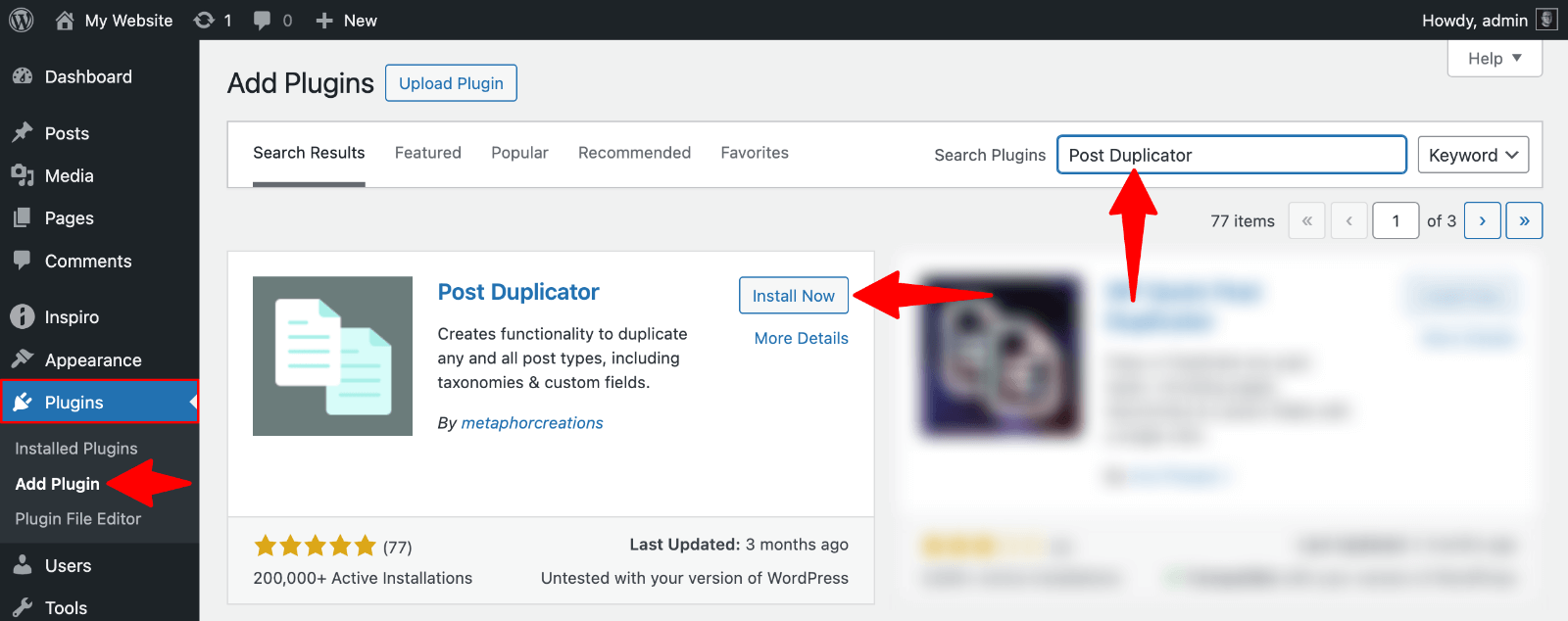
2. Navigate to Posts > All Posts.
3. Hover over the content you want to duplicate.
4. Click “Duplicate Post” in the action links.
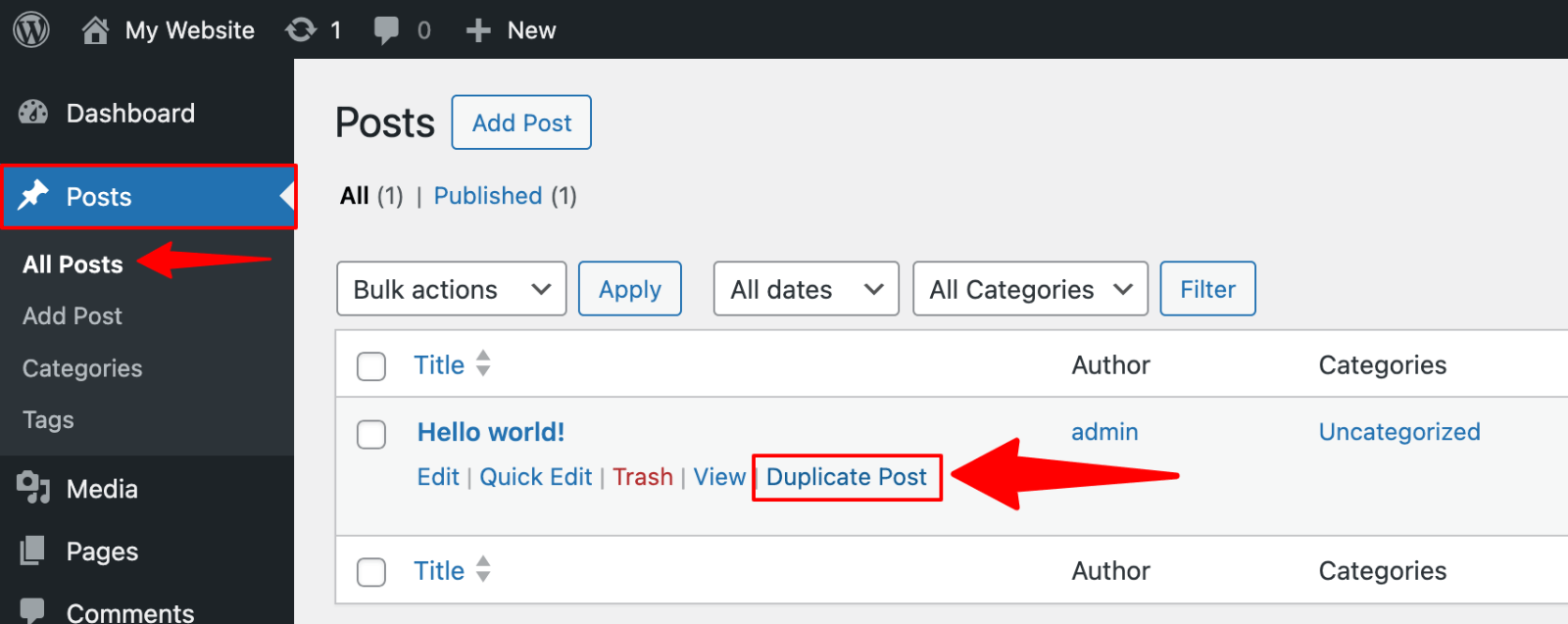
The duplicated content appears immediately in your admin panel.
Post Duplicator excels at preserving complex content structures. If your pages use advanced custom fields, multiple taxonomies, or intricate metadata configurations, this plugin maintains all connections accurately.
WP Post Page Clone
WP Post Page Clone offers the fastest duplication method available. This lightweight plugin requires zero configuration and works immediately after activation.
Quick Duplication Method:
1. Install and activate “WP Post Page Clone” via Plugins > Add New.

3. Go to your Pages or Posts admin screen.
4. Hover over any item you want to duplicate.
5. Click “Click To Clone” to instantly create a complete copy.
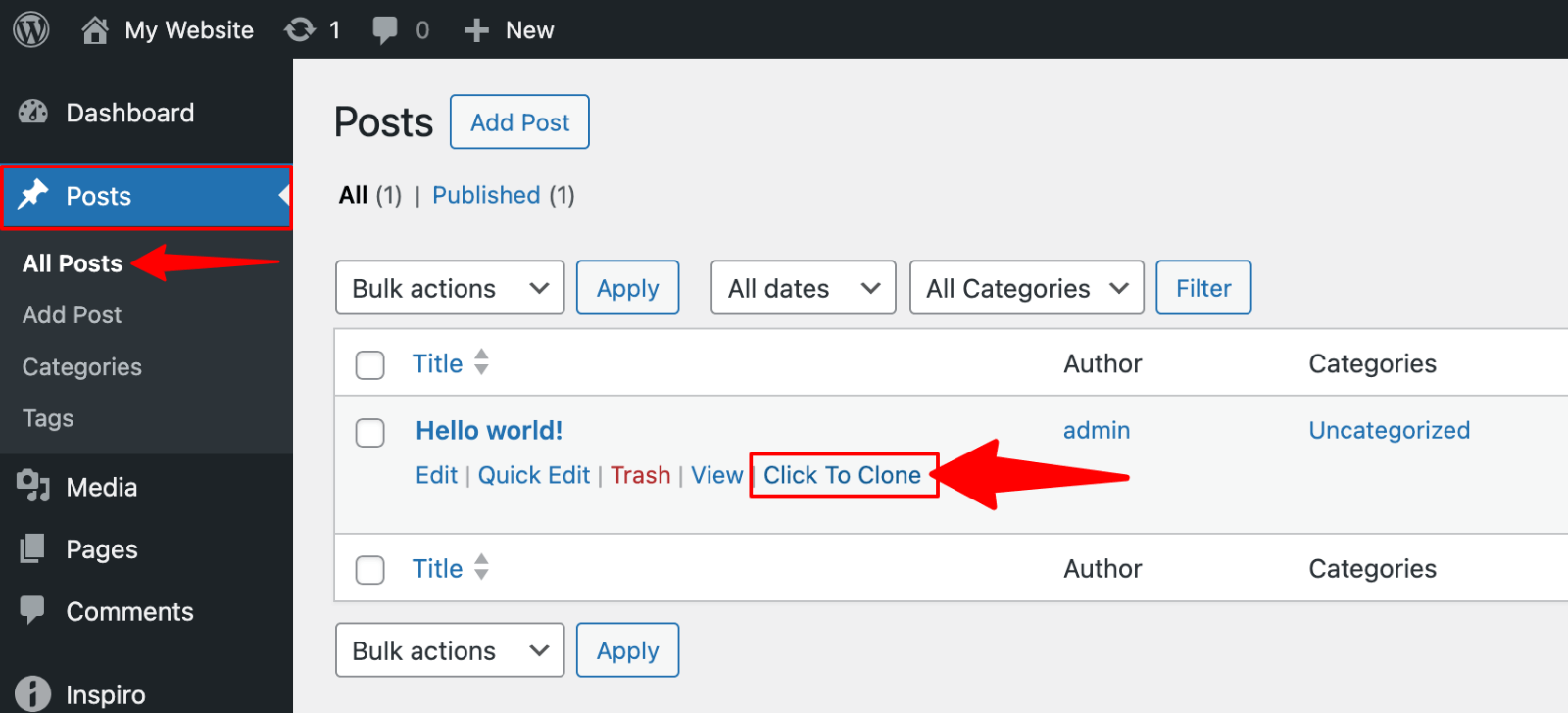
While it lacks advanced configuration options, its speed and simplicity make it perfect for users who need quick, straightforward duplication without customization requirements.
Upgrade Your Website with a Premium WordPress Theme
Find a theme that you love and get a 10% discount at checkout with the FLASH10 code
Choose your theme
Duplicate a WordPress Page Without Plugins
You can duplicate WordPress pages without installing additional plugins using three built-in methods. Each approach has different complexity levels and preservation capabilities.
Using the Gutenberg Editor
The Gutenberg editor provides the simplest manual duplication method, though it has limitations compared to plugin solutions.
Step-by-Step Copy and Paste Method:
1. Open the page you want to duplicate in the WordPress editor.
2. Click the three dots menu in the top-right corner of the editor.
3. Select “Copy all blocks” from the dropdown menu.

4. Navigate to Pages > Add New to create a fresh page.
5. Click in the content area and paste using Ctrl+V (or Cmd+V on Mac).
6. Update the page title and publish when ready.
Pros and Cons: This method is quick and efficient for basic content duplication, requiring no technical expertise. You can effectively copy text, images, and basic block structures.
However, the Gutenberg copy-and-paste approach has significant limitations:
- Featured images don’t transfer automatically.
- Categories, tags, and custom fields get lost during the process.
- SEO metadata and permalink structures require manual recreation.
- Page templates and advanced settings need separate configuration.
Manual Code Duplication via HTML Editor (Classic Editor)
For users still using the Classic Editor or sites with it enabled, the HTML editor method preserves more formatting than simple copy-and-paste operations.
Steps to Copy WordPress Page Content Through HTML Editor:
- Navigate to the page you want to duplicate
- Open the page editor and click the “Text” tab (HTML view)
- Select all HTML content using Ctrl+A (or Cmd+A on Mac)
- Copy the selected code with Ctrl+C (or Cmd+C on Mac)
- Create a new page and switch to the “Text” tab
- Paste the HTML content using Ctrl+V (or Cmd+V on Mac)
- Switch back to the “Visual” tab to review the content
- Update title, permalink, and other settings as needed
This method preserves more formatting details, including complex layouts and embedded elements. Custom HTML structures and inline styles transfer correctly.
The drawbacks include:
- The requirement for the Classic Editor and basic HTML knowledge.
- Featured images, categories, and SEO settings still need individual setup.
- Custom fields and advanced page configurations are not transferred through this method.
Note: This method requires the Classic Editor plugin if your site uses the Gutenberg editor as its default.
Adding Custom Duplication Code
Advanced users can add custom duplication functionality by adding code to their WordPress site. This method creates a permanent “Duplicate” button in your WordPress admin.
Important: Always back up your website before making any code changes.
1. Install and activate the free WPCode plugin from the WordPress repository.
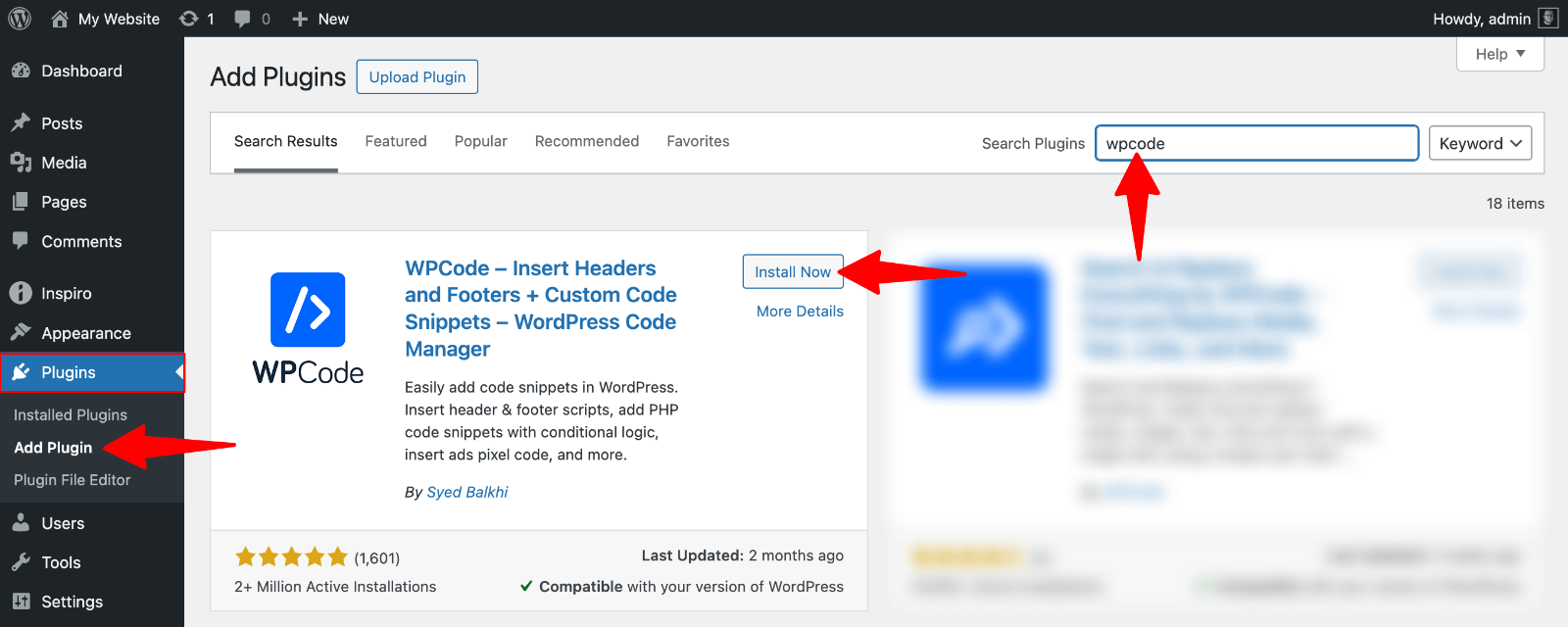
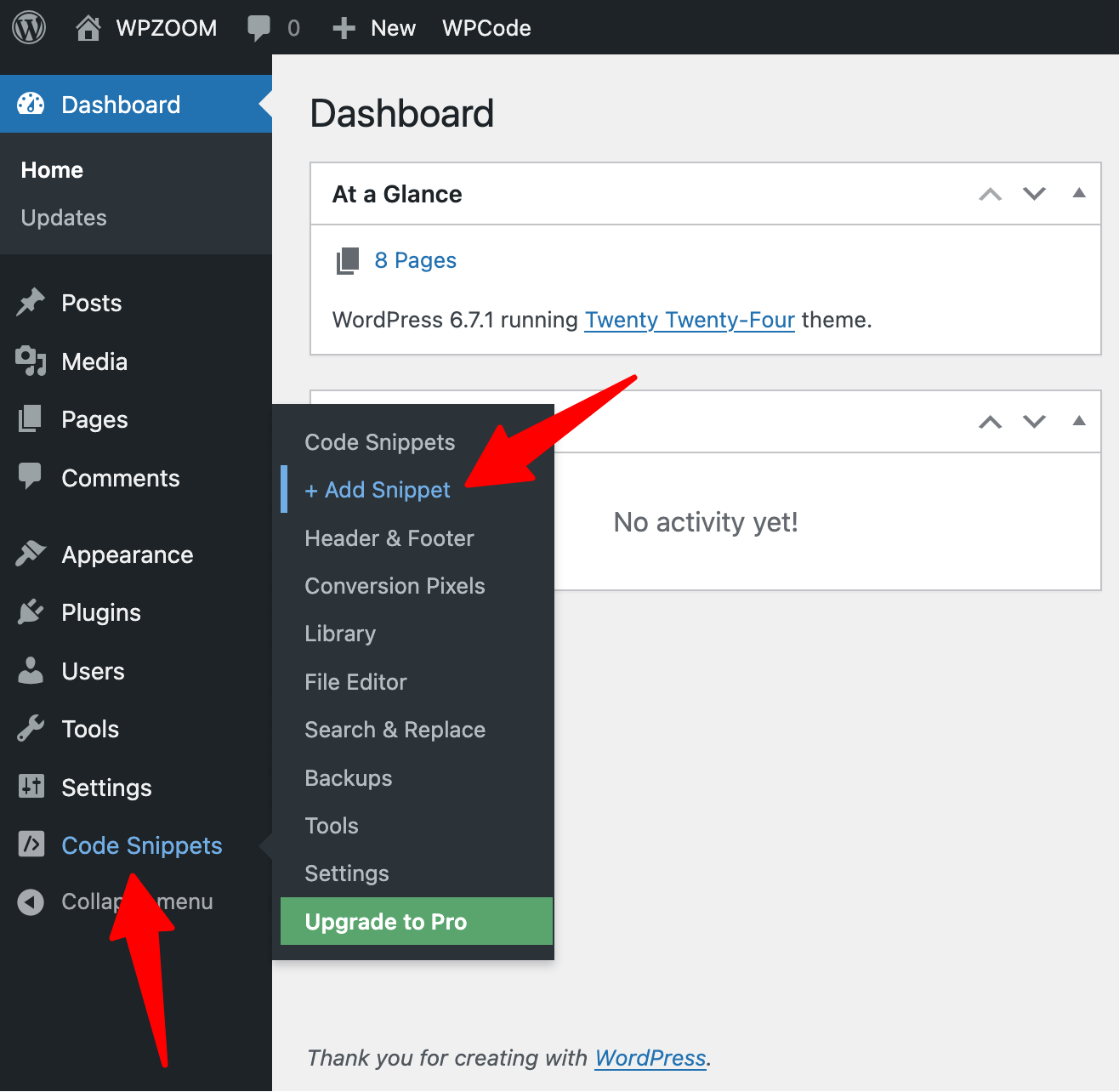
2. Go to Code Snippets > Add Snippet in your WordPress admin.
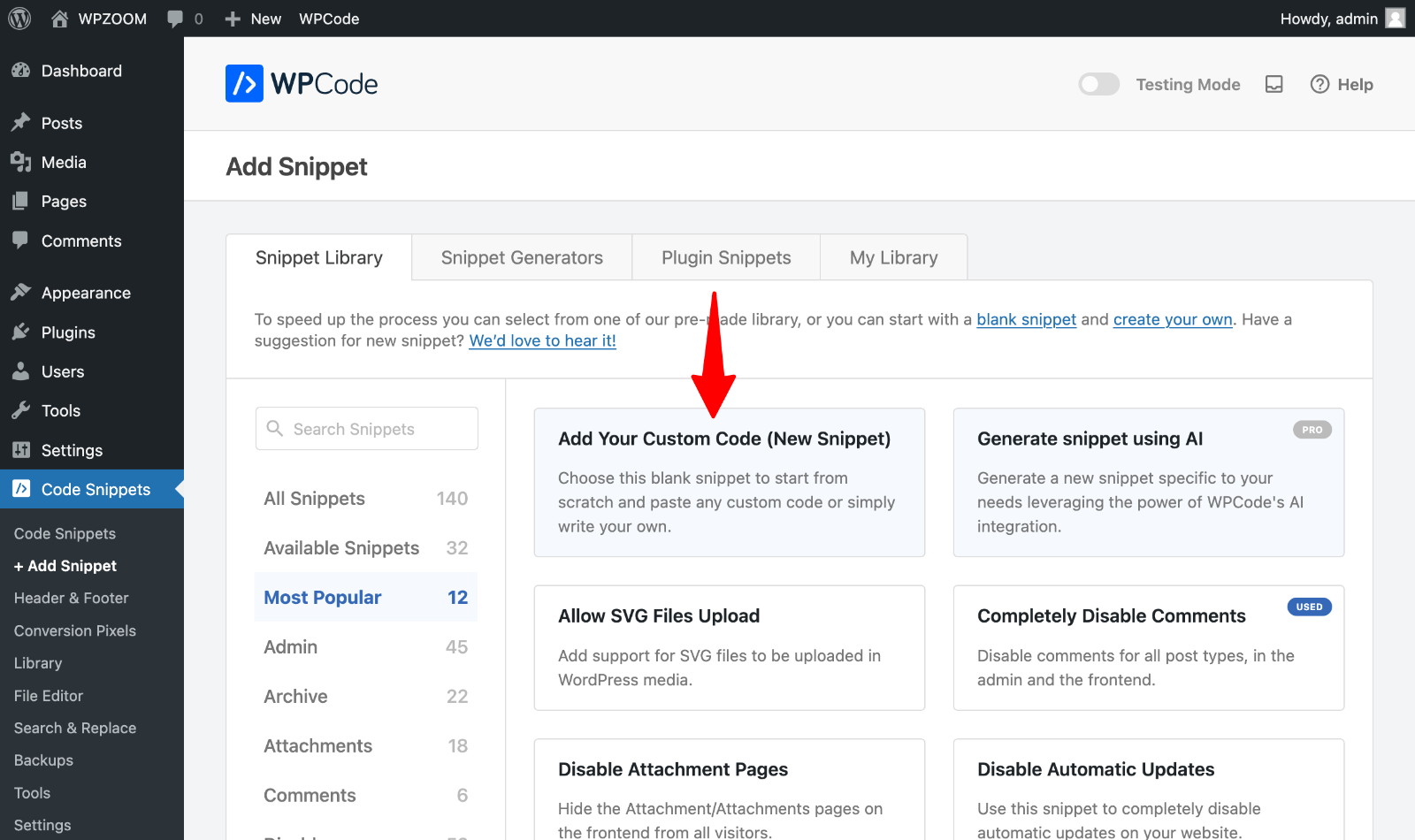
3. Choose “Add Your Custom Code (New Snippet)“.
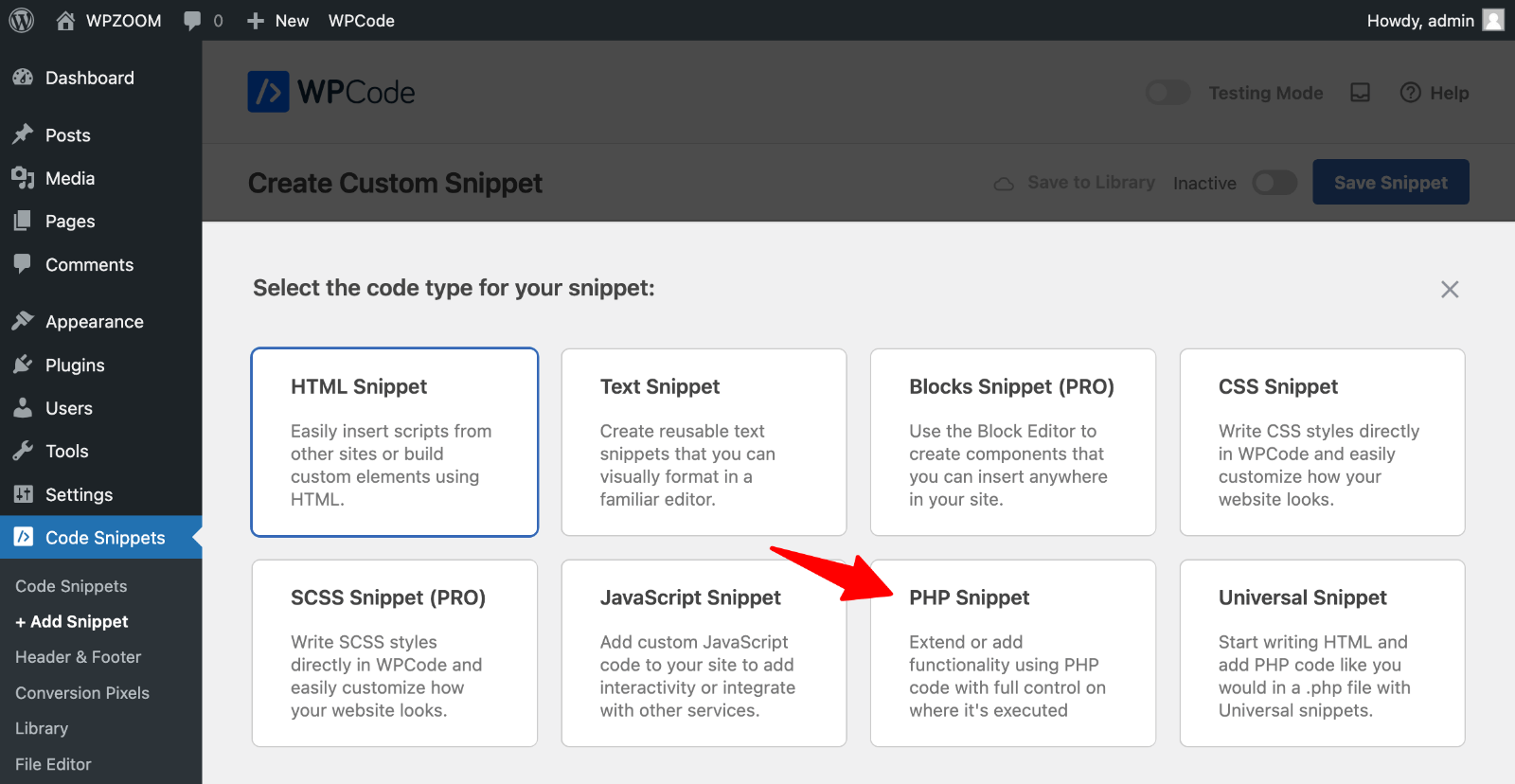
4. Select “PHP Snippet” as the code type.
5. Paste the complete code snippet below into the code area:
// Function for post duplication
function wpzoom_duplicate_post_as_draft(){
    global $wpdb;
    if (!(isset($_GET['post']) || isset($_POST['post']) || (isset($_REQUEST['action']) && 'wpzoom_duplicate_post_as_draft' == $_REQUEST['action']))) {
        wp_die('No post to duplicate has been supplied!');
    }

    // Nonce verification for security
    if (!isset($_GET['duplicate_nonce']) || !wp_verify_nonce($_GET['duplicate_nonce'], basename(__FILE__)))
        return;

    // Get original post ID and data
    $post_id = (isset($_GET['post']) ? absint($_GET['post']) : absint($_POST['post']));
    $post = get_post($post_id);

    if (isset($post) && $post != null) {
        // Create new post with copied data
        $args = array(
            'comment_status' => $post->comment_status,
            'ping_status' => $post->ping_status,
            'post_author' => wp_get_current_user()->ID,
            'post_content' => $post->post_content,
            'post_excerpt' => $post->post_excerpt,
            'post_parent' => $post->post_parent,
            'post_password' => $post->post_password,
            'post_status' => 'draft',
            'post_title' => $post->post_title,
            'post_type' => $post->post_type,
            'menu_order' => $post->menu_order
        );

        $new_post_id = wp_insert_post($args);

        // Copy taxonomies and metadata
        $taxonomies = get_object_taxonomies($post->post_type);
        foreach ($taxonomies as $taxonomy) {
            $post_terms = wp_get_object_terms($post_id, $taxonomy, array('fields' => 'slugs'));
            wp_set_object_terms($new_post_id, $post_terms, $taxonomy, false);
        }

        // Duplicate post metadata
        $post_meta = $wpdb->get_results("SELECT meta_key, meta_value FROM $wpdb->postmeta WHERE post_id=$post_id");
        if (count($post_meta) != 0) {
            $sql_query = "INSERT INTO $wpdb->postmeta (post_id, meta_key, meta_value) ";
            foreach ($post_meta as $meta_info) {
                $meta_key = $meta_info->meta_key;
                if ($meta_key == '_wp_old_slug') continue;
                $meta_value = addslashes($meta_info->meta_value);
                $sql_query_sel[] = "SELECT $new_post_id, '$meta_key', '$meta_value'";
            }
            $sql_query .= implode(" UNION ALL ", $sql_query_sel);
            $wpdb->query($sql_query);
        }

        wp_redirect(admin_url('post.php?action=edit&post=' . $new_post_id));
        exit;
    }
}
add_action('admin_action_wpzoom_duplicate_post_as_draft', 'wpzoom_duplicate_post_as_draft');

// Add duplicate link to post actions
function wpzoom_duplicate_post_link($actions, $post) {
    if (current_user_can('edit_posts')) {
        $actions['duplicate'] = '<a href="' . wp_nonce_url('admin.php?action=wpzoom_duplicate_post_as_draft&post=' . $post->ID, basename(__FILE__), 'duplicate_nonce') . '" title="Duplicate this item" rel="permalink">Duplicate</a>';
    }
    return $actions;
}
add_filter('post_row_actions', 'wpzoom_duplicate_post_link', 10, 2);
add_filter('page_row_actions', 'wpzoom_duplicate_post_link', 10, 2);
6. Set the snippet to “Auto Insert“.
7. Give your snippet a descriptive title like “WordPress Page Duplicator”.
8. Activate the snippet and test the functionality.
This code creates comprehensive duplication functionality that preserves all post data, metadata, taxonomies, and custom fields. The duplicated content appears as a draft, allowing you to make changes before publishing.
Best Practices When Duplicating Pages
Proper WordPress page duplication requires attention to several key details that prevent SEO issues and maintain site organization.
- Update Permalinks Immediately. Change the URL slug of your duplicated page before publishing. WordPress automatically adds numbers to duplicate permalinks; however, creating descriptive, keyword-rich URLs improves both search rankings and user experience.
- Modify SEO Metadata. Edit meta descriptions, title tags, and focus keywords for each duplicated page. Search engines penalize sites with identical metadata across multiple pages. Update Open Graph tags and Twitter Card data if you use social media sharing.
- Avoid Duplicate Content Issues. Never publish two pages with identical content. Search engines struggle to determine which version to rank, potentially hurting both pages’ visibility. Make substantial content changes to differentiate between duplicated pages and their originals.
- Differentiate New Pages from Originals. Update page titles, headings, and content structure to create unique value. Change images, calls-to-action, and internal linking patterns. This approach helps users and search engines understand the distinct purpose of each page while maintaining your site’s authority.
Why Duplicate a Page in WordPress?
You’ll find page duplication useful in several scenarios:
- Testing different layouts becomes easier when you can quickly create variations of existing pages without having to start from scratch. A/B testing campaigns require multiple versions of the same content with slight modifications—duplicating content allows you to maintain consistency while testing specific elements.
- Content migration projects benefit significantly from duplication features. Moving pages between websites or reorganizing site structure becomes straightforward when you can clone a page in WordPress with all its settings intact.
- Template creation also relies on duplication: build one perfect page and use it as a foundation for similar content.
- Preserving formatting and metadata is crucial because simple copy-and-paste operations strip away essential elements, including featured images, custom fields, categories, tags, SEO settings, permalink structures, and metadata. Restoring these elements manually takes considerable time.
Smart duplication methods maintain all these components. Your cloned pages retain their original structure, design elements, and search engine optimizations. Custom post types, taxonomies, and advanced field configurations transfer seamlessly. This comprehensive approach saves hours of reconstruction work while ensuring consistency across your website’s pages and maintaining your site’s search rankings.
Speed Up Your WordPress Workflow with Quality Templates
Duplicating pages becomes even more effective when you start with well-designed templates. Quality WordPress themes often include pre-built page layouts that serve as excellent starting points for duplication.
Look for themes that offer diverse page templates—landing pages, service pages, and portfolio layouts work particularly well for duplication projects. Themes with a clean code structure and mobile-responsive design are preserved better during the duplication process.
WPZOOM themes include conversion-optimized templates that duplicate seamlessly, maintaining their formatting and functionality. This approach transforms lengthy design sessions into quick customization tasks.