The WordPress admin bar appears at the top of your site when you’re logged in, but not everyone needs it visible all the time. If you want to hide the WordPress admin bar for a cleaner frontend design or to restrict dashboard access for specific users, you have several options. This guide covers four tested methods that work with WordPress 6.7 and beyond, from simple dashboard settings to code-based solutions.
Whether you’re managing a client site, improving user experience, or just prefer a distraction-free view of your website, you’ll find a method that fits your skill level and needs.
Table of Contents
- What Is the WordPress Admin Bar?
- Why Hide the WordPress Admin Bar?
- Method 1: Hide Admin Bar Through WordPress Dashboard Settings
- Method 2: Use WPCode Plugin to Hide Admin Bar
- Method 3: Use a WordPress Plugin for Role-Based Control
- Method 4: Add Custom PHP Code to Functions.php
- Troubleshooting Common Issues When Hiding the Admin Bar
What Is the WordPress Admin Bar?
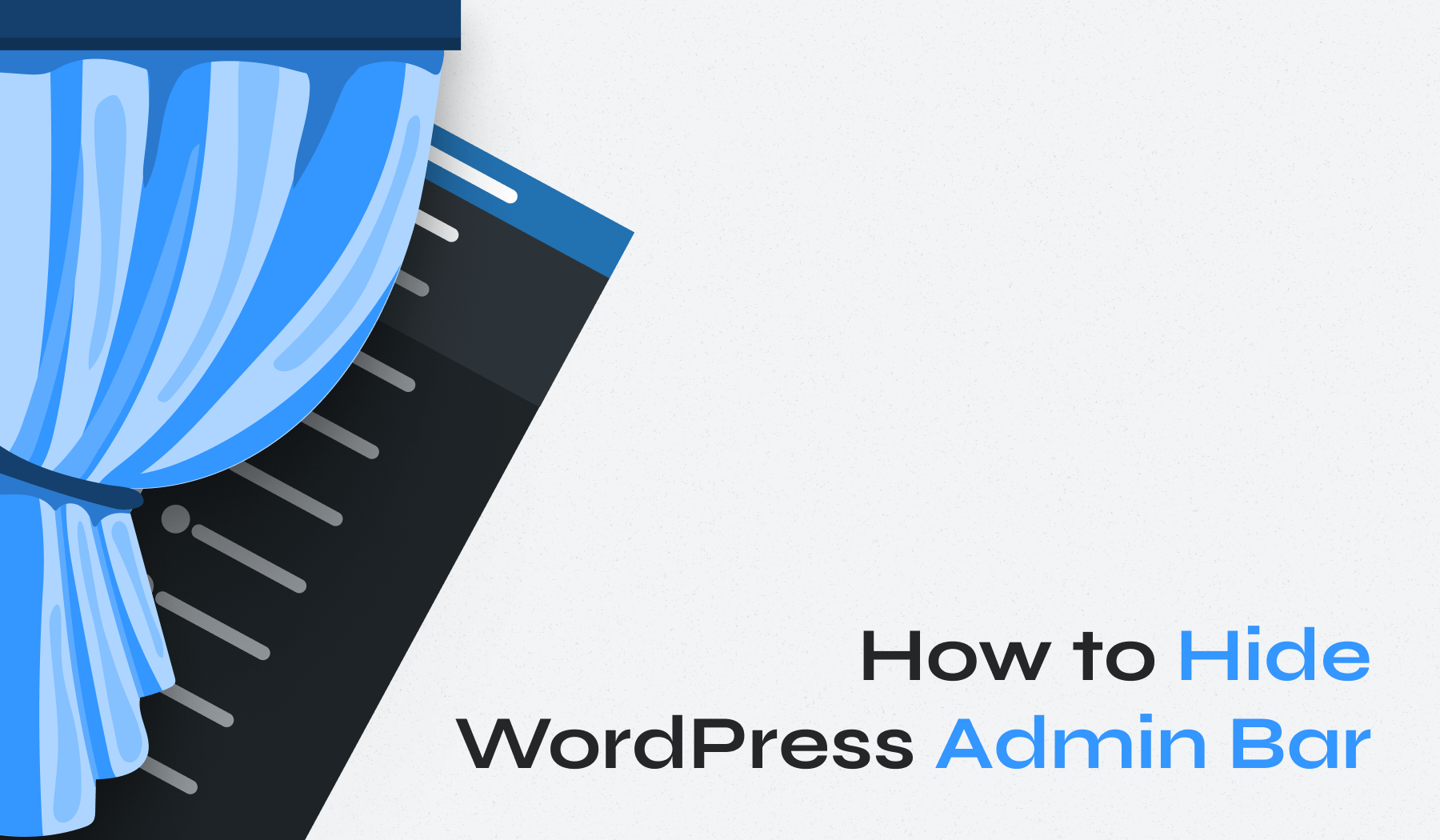
The WordPress admin bar (also called the admin toolbar) is a 32-pixel horizontal bar that appears at the top of your screen when you’re logged into WordPress. It shows up on both the frontend of your site and in the WordPress dashboard, giving you quick access to common tasks.
The toolbar includes shortcuts to your profile, site management functions, comments, and new content creation. What you see depends on your user role and permissions. Administrators see more options than editors, authors, or subscribers. Some users find it helpful for navigation, while others see it as visual clutter that interferes with their site’s design.
For logged-in users viewing the frontend, the admin bar can push your site content down by 32 pixels, which sometimes causes layout issues or breaks sticky headers. This is one of the main reasons people look for ways to disable it.
Why Hide the WordPress Admin Bar?
- Security and access control are primary concerns. If you’re running a membership site or working with clients, hiding the admin bar prevents users from easily accessing backend functions they don’t need. It’s an extra layer of separation between your frontend experience and administrative areas.
- Visual design matters, especially for client sites and portfolios. The black toolbar can clash with your site’s header design or interrupt the visual flow you’ve carefully created. Many designers prefer a clean presentation without administrative elements visible to anyone.
- User experience improves when you hide the toolbar from contributors, subscribers, or customers who don’t need dashboard shortcuts. These users might find the admin bar confusing or accidentally click on functions they shouldn’t access. A cleaner interface means less confusion.
- Professional presentation is essential for client handoffs. If you’re building sites for clients who only need basic content editing, removing administrative clutter from their view creates a more polished, professional experience.
The admin toolbar can also interfere with site functionality. It sometimes conflicts with sticky navigation menus, modal windows, or full-width hero sections. Hiding it solves these technical issues without requiring extensive CSS fixes.
Method 1: Hide Admin Bar Through WordPress Dashboard Settings
This built-in WordPress option works perfectly if you only need to hide the admin bar for yourself or a handful of specific users. It requires no plugins or coding, and you can reverse it instantly.
Here’s how it works:
- Log in to your WordPress dashboard
- Navigate to Users → All Users to change settings for other users, or go to Users → Profile to change your own settings
- Scroll down to the Toolbar section
- Uncheck the box next to “Show Toolbar when viewing site”
- Click Update Profile at the bottom
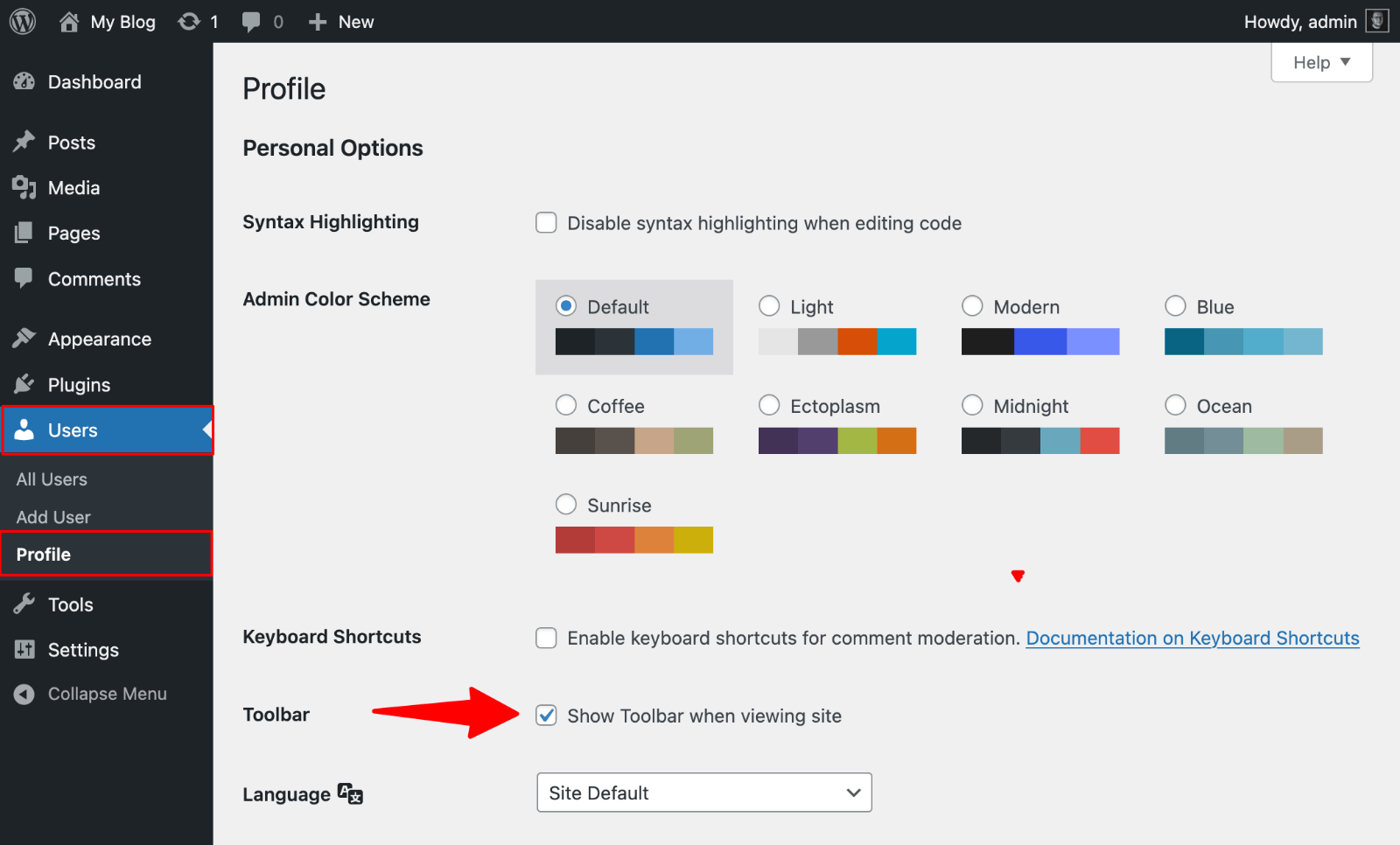
The admin bar will disappear from the frontend immediately for that user. They’ll still see it in the backend dashboard; this setting only affects the frontend view. This is actually helpful because users can still access necessary dashboard functions without the toolbar cluttering their public-facing site view.
When to use this method: It’s ideal for personal sites, small teams, or situations where only a few users need the change. The limitation is obvious. You must repeat this process for each user individually, which becomes tedious on sites with many users.
Method 2: Use WPCode Plugin to Hide Admin Bar
If you’re comfortable adding code snippets but don’t want to risk breaking your site by editing theme files directly, WPCode is your best option. This plugin provides a safer way to add custom code to WordPress.
The plugin comes with a pre-made snippet library that includes an admin bar disable option, so you don’t even need to write the code yourself.
Getting started with WPCode takes about five minutes:
- Go to Plugins → Add New Plugin in your dashboard
- Search for “WPCode” (formerly Insert Headers and Footers)
- Click Install Now, then Activate
- Navigate to Code Snippets → Library in your WordPress menu
- Search for “admin bar” in the library
- Find the “Disable The WP Admin Bar” snippet
- Click Use Snippet
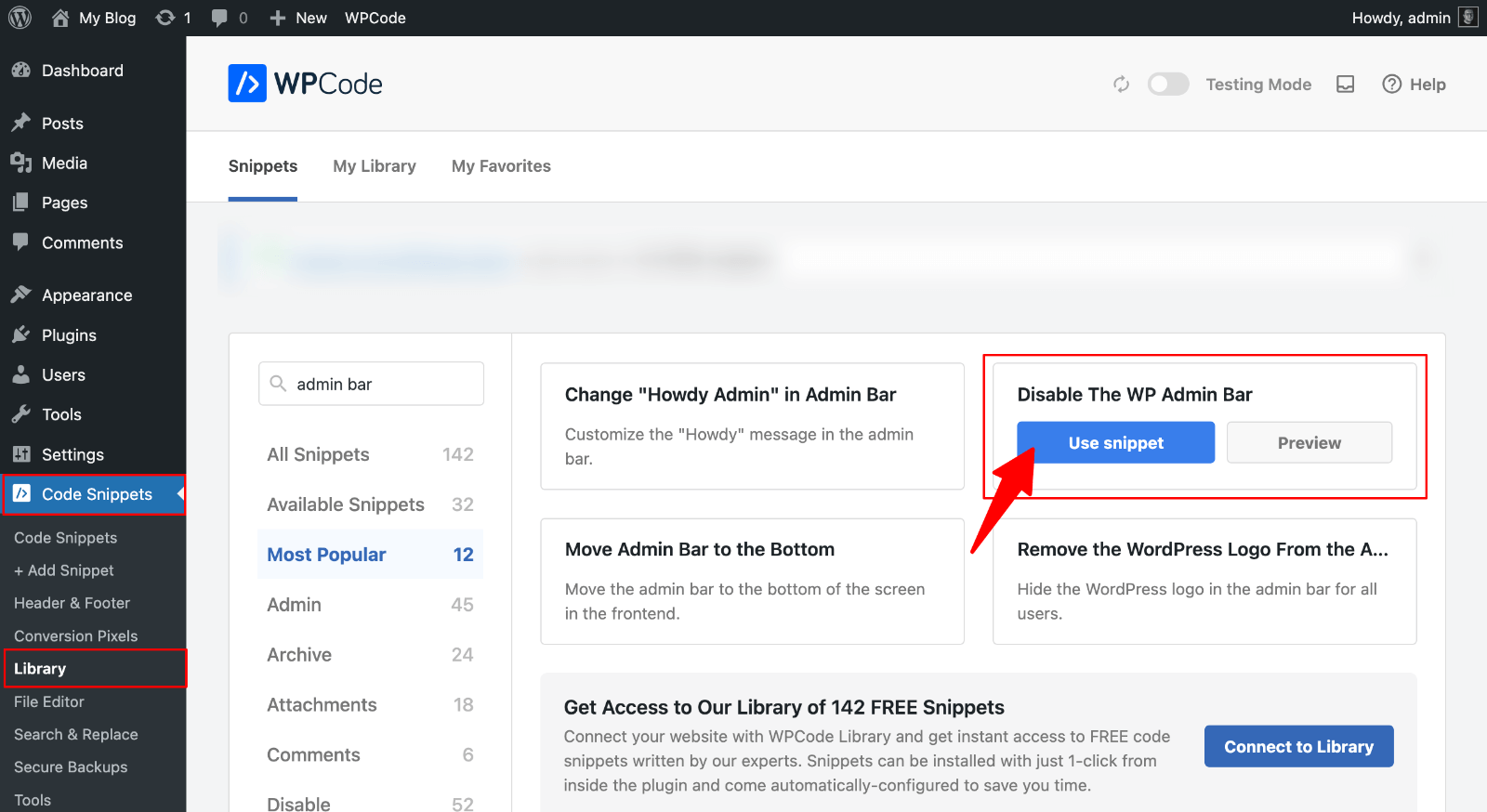
WPCode automatically inserts this code:
add_filter('show_admin_bar', '__return_false');Before the snippet works, you need to toggle it from Inactive to Active using the switch at the top of the snippet editor. Click Save Snippet and visit your site’s frontend while logged in. The admin bar should be gone.
Customizing WPCode for Specific User Roles
The basic snippet hides the admin bar for everyone, including administrators. If you want to keep it visible for admins but hide it for other user roles, you’ll need to modify the code slightly.
Replace the default snippet with this:
add_action('after_setup_theme', 'hide_admin_bar_except_admin');
function hide_admin_bar_except_admin() {
    if (!current_user_can('administrator') && !is_admin()) {
        show_admin_bar(false);
    }
}
This code checks if the current user has administrator privileges. If they don’t, and they’re viewing the frontend (not the dashboard), it hides the admin bar. You can modify ‘administrator’ to target different user roles like ‘editor’, ‘author’, ‘contributor’, or ‘subscriber’.
WPCode’s Smart Conditional Logic feature (available in the Pro version) gives you even more control, letting you hide the toolbar based on device type, page location, or custom conditions without writing additional code.
Upgrade Your Website with a Premium WordPress Theme
Find a theme that you love and get a 10% discount at checkout with the FLASH10 code
Choose your theme
Method 3: Use a WordPress Plugin for Role-Based Control
Hide Admin Bar Based on User Roles Plugin
If you prefer a visual interface over code snippets, the Hide Admin Bar Based on User Roles plugin provides a straightforward checkbox system.
After installing the plugin from the WordPress repository, head to Settings → Hide Admin Bar Settings. You’ll see checkboxes for each user role: Administrator, Editor, Author, Contributor, Subscriber, and any custom roles you’ve added (like WooCommerce’s Customer role).
Simply check the boxes next to the user roles you want to hide the admin bar from, click Save Changes, and you’re done.
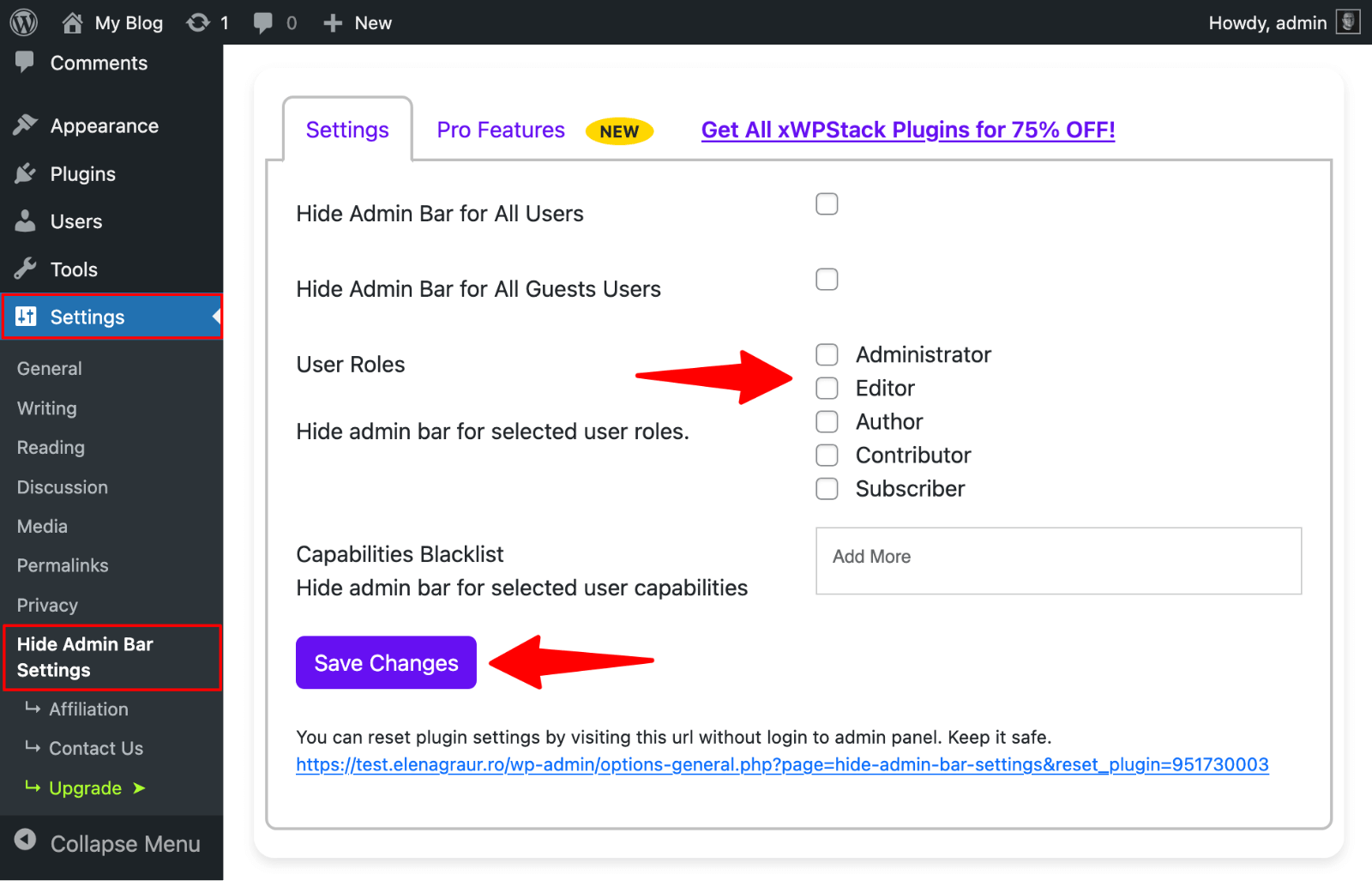
The plugin handles everything in the background. No code required, and you can reverse the changes just as easily by unchecking boxes.
Alternative: Admin and Site Enhancements Plugin
Admin and Site Enhancements (ASE) offers a more comprehensive approach if you’re looking to customize multiple aspects of your WordPress admin area. ASE includes over 50 different enhancement options, including admin bar hiding.
Navigate to Tools → Enhancements → Admin Interface and look for the Hide Admin Bar option. You can choose to hide it on the frontend, backend, or both, and specify which user roles are affected.

The advantage here is consolidation. If you’re using several plugins for different admin customizations, ASE might replace multiple single-purpose plugins and reduce your overall plugin count. That can improve site performance and simplify maintenance.
Method 4: Add Custom PHP Code to Functions.php
Important Prerequisites Before Editing Code
Editing your theme’s functions.php file directly gives you complete control, but it comes with risks. Always use a child theme when adding custom code. Otherwise, your changes disappear when you update your theme.
Before making any changes:
- Create a complete backup of your site
- Test changes in a staging environment first, if possible
- Consider using WPCode instead (Method 2) for safer implementation
If you make a syntax error in functions.php, your entire site can go down with a critical error. There’s no built-in safety net like WPCode provides.
Accessing Theme Editor
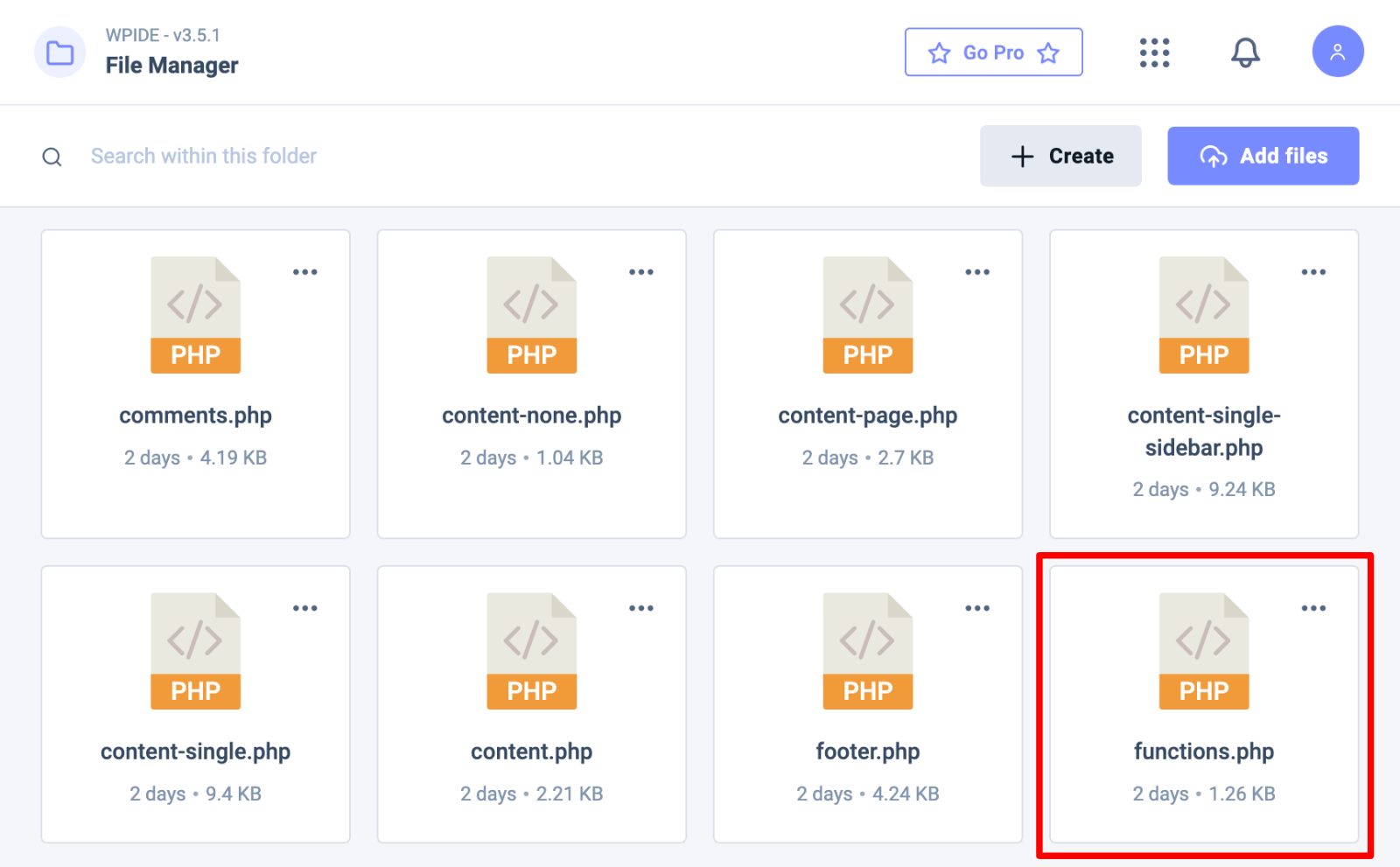
To access your theme’s functions.php file, we recommend using the WPIDE plugin rather than WordPress’s built-in Theme Editor.
This file editor provides syntax highlighting, error detection, and a safer editing environment than the default WordPress editor.
1. Install and activate WPIDE from the WordPress repository
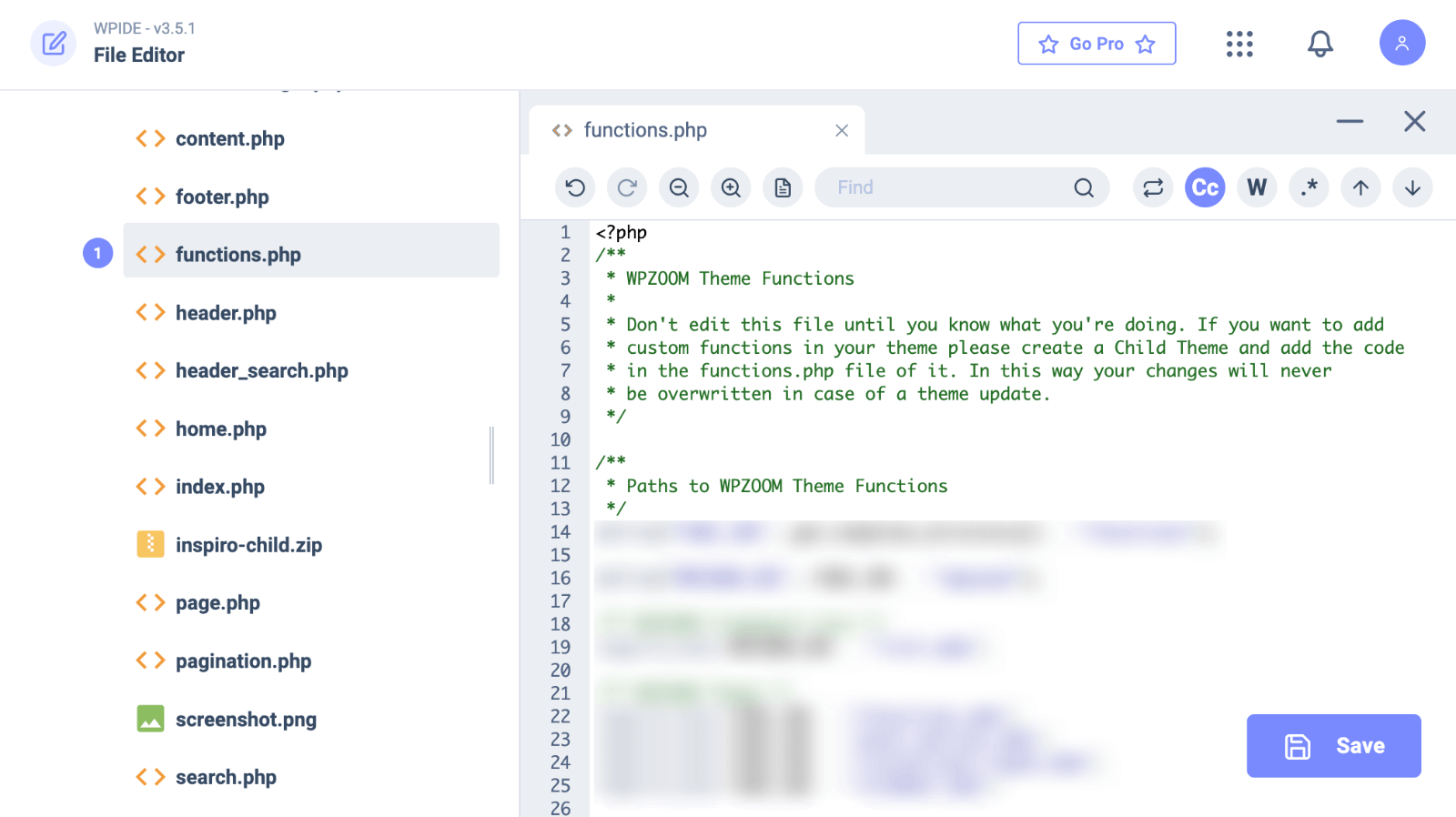
2. Go to WPIDE → File Editor in your dashboard
3. Navigate to your child theme folder in the file tree
4. Open functions.php
5. The plugin provides better code visualization and helps catch errors before you save
Code Snippet to Hide Admin Bar for All Users
Add this single line of code to your functions.php file:
add_filter('show_admin_bar', '__return_false');Place it before the closing ?> PHP tag if your file has one, or simply add it to the end of the file.
Click Update File and check your site’s frontend while logged in. The admin toolbar should disappear immediately.
This code tells WordPress to disable the admin bar for all users on both the frontend and backend.
Code for Role-Specific Hiding
For more control, use this code to hide the toolbar for everyone except administrators:
add_action('after_setup_theme', 'remove_admin_bar');
function remove_admin_bar() {
    if (!current_user_can('administrator') && !is_admin()) {
        show_admin_bar(false);
    }
}
The current_user_can() function checks user permissions. The !is_admin() part ensures the code only runs on the frontend, not in the WordPress dashboard.
You can modify this for different scenarios:
Hide for subscribers only:
if (current_user_can('subscriber')) {
    show_admin_bar(false);
}
Hide for everyone except editors and admins:
if (!current_user_can('edit_posts')) {
    show_admin_bar(false);
}
The edit_posts capability is held by editors, authors, and administrators, but not contributors or subscribers.
Troubleshooting Common Issues When Hiding the Admin Bar
Admin Bar Still Visible After Changes
If the admin toolbar still appears after you’ve applied one of these methods, try these fixes:
- Clear all caches. This includes your browser cache, WordPress caching plugins, and server-level caching if your host provides it. Old cached versions of your site might still show the admin bar even though your changes are working.
- Check for theme conflicts. Your theme needs to include the wp_footer() function call in its footer.php file for the admin bar code to work properly. Most modern themes include this, but older or poorly coded themes might not.
- Test for plugin conflicts. Deactivate all plugins except WPCode (if you’re using Method 2), then reactivate them one by one to identify any plugin conflicts.
- Verify code placement. If you added code to functions.php, make sure it’s outside of any other function definitions and that you didn’t introduce syntax errors. Even a missing semicolon or bracket can prevent the code from executing.
- Check user role assignments. If you’re using role-based hiding, confirm that the affected users actually have the roles you’re targeting. Sometimes users get custom roles that don’t match standard WordPress roles.
Restoring the Admin Bar
Changed your mind? Here’s how to bring the admin bar back:
- Dashboard settings: Check the “Show Toolbar when viewing site” box in user profiles
- WPCode: Deactivate or delete the snippet from Code Snippets → Snippets
- Plugins: Deactivate the Hide Admin Bar plugin or uncheck all roles in settings
- Functions.php: Remove the code you added and update the file
The admin bar will reappear immediately after you reverse the changes (you might need to clear your cache).
Take Control of Your WordPress Site
Ready to build a WordPress site that looks professional from every angle? WPZOOM‘s premium themes give you complete control over your site’s appearance and functionality without touching code. Every theme includes intuitive options panels, responsive design, and built-in customization features that make WordPress work the way you need it to.
Whether you’re building a portfolio, blog, or business site, WPZOOM themes are optimized for performance, SEO, and user experience. Explore our collection of WordPress themes and discover how the right foundation makes professional WordPress development accessible to everyone.